This user guide is to show the referral specialist how to create document types for scanned documents as well as how to place them in categories.
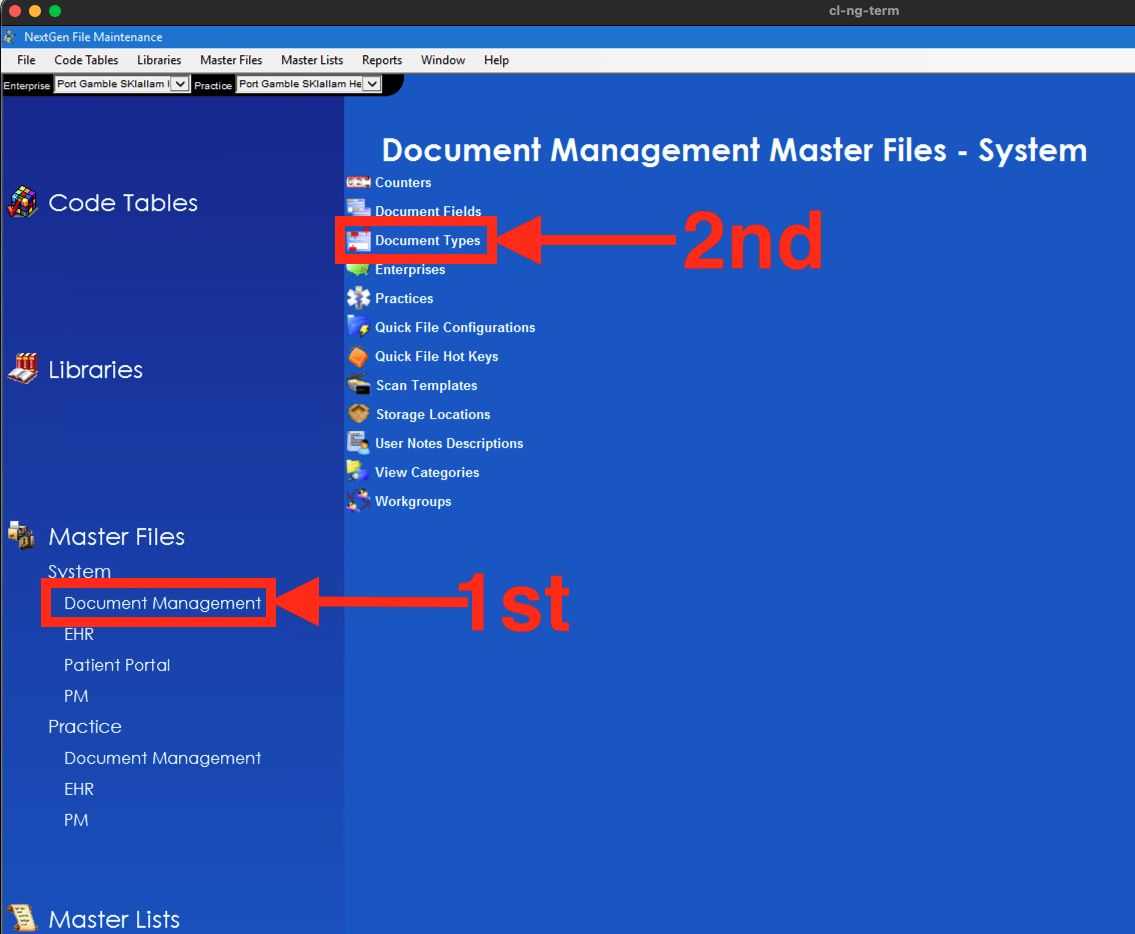
To begin, you will need to open File Maintenance from the application launcher 
With File Maintenance open you will first need to select "Document Management" on the left hand side.
Now that the Document Management Master Files are showing, you will need to click on "Document Types"
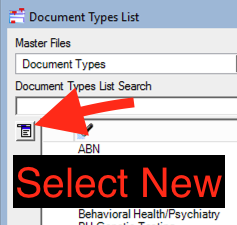
The Document Types List window will pop up with all of the Document Types in our system. To create a new one you will need to click on the document icon on the top left hand side of the window as shown in the picture below. When you click that button, you will want to select "New" to create a Document Type.
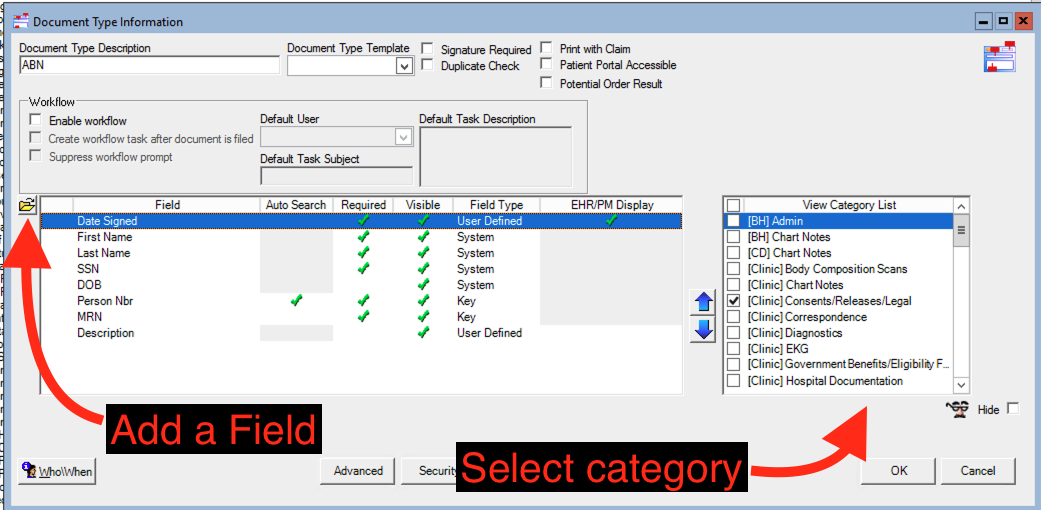
Here you will add the name of the document into the "Document Type Description". Document Type Template is often left blank but you'll need to figure out if the document you're scanning in needs "Signature Required", "Duplicate Check", and/or "Potential Order Result". If the document has a PAQ field added to it, you will need to make sure "Signature Required" is checked.
Your Document will have fields that need to be entered into the system. You can add those fields into the Document type by clicking on the yellow file icon next to fields.
Before clicking ok and creating your new Document Type, you'll need to add it to a category. If you're unsure as to which category to use, you can open other Document Types in the previous window to get a better idea of where to place your new Document Type. If you need to have a new category created then place a ticket with the name of your new category and we will create it for you.